Samsung Galaxy devices are known for their advanced features, vibrant displays, and strong performance. However, like any smartphone, they’re not entirely free from technical issues, especially when it comes to running web applications. If you’re facing issues such as unexpected lags, crashes, or display glitches while using web apps on your Samsung Galaxy, you’re not alone. Many users encounter these common challenges, which can often be resolved with a few simple adjustments.
In this article, we’ll explore five frequent issues users encounter with web apps on Samsung Galaxy devices and share effective tips for troubleshooting them. Read on to discover how to optimize your phone for smooth web app performance.
Battery Drain During Use
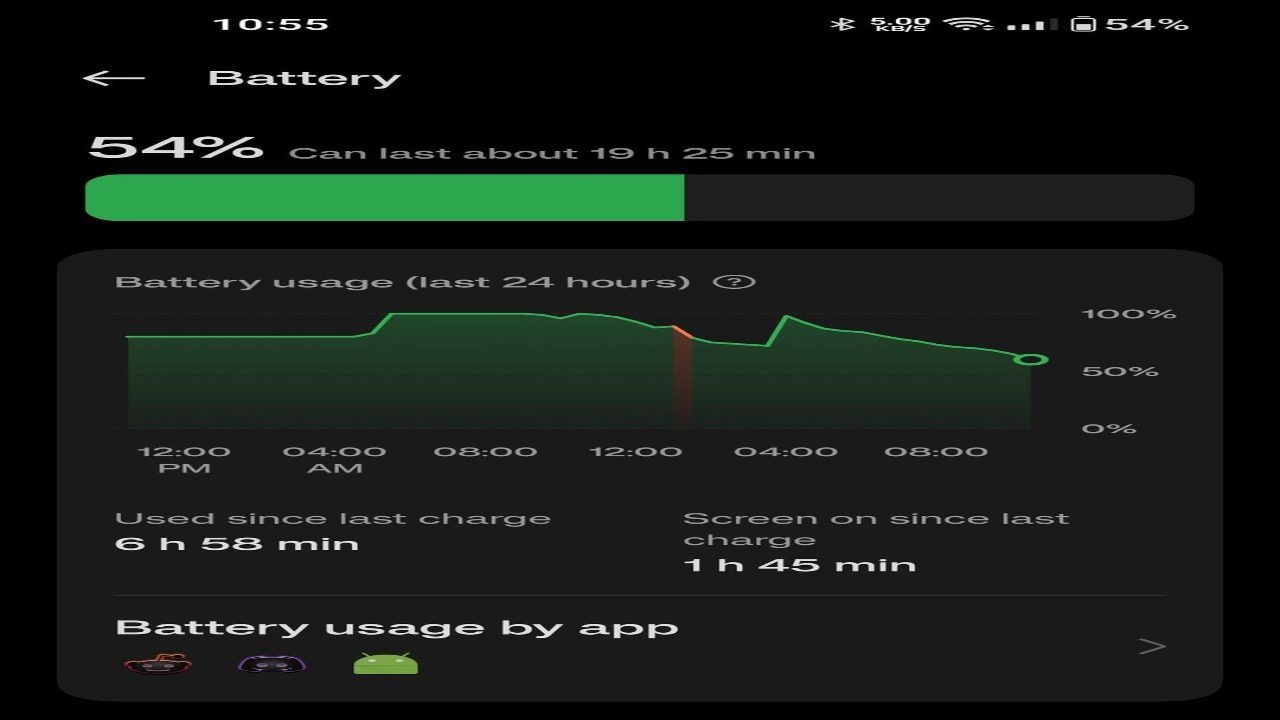
Samsung Galaxy devices are known for strong battery life, but running web apps, especially resource-intensive ones, can quickly drain your phone’s battery. This issue is often related to the app’s high energy demands or background processes that continue even after you exit the app. If you’re using a Galaxy S22 Ultra and notice persistent battery issues, having quality S22 Ultra parts on hand can be essential to keep your device in peak condition, especially as batteries degrade over time.
To conserve battery life, navigate to Settings > Battery and device care > Battery > Background usage limits and set specific restrictions for the app in question. This feature will help you manage background processes and reduce power consumption when you’re not actively using the app. Additionally, you can switch on “Power Saving Mode” to limit certain functions and save battery. Monitoring your phone’s battery usage and adjusting app settings will go a long way in extending battery life while using web apps.
App Freezing and Crashing
One of the most common frustrations Galaxy users experience is web apps freezing or crashing unexpectedly. This can occur due to various factors, such as software bugs, memory limitations, or even compatibility issues between the app and your Samsung device’s specific version of Android.
Start by clearing the app’s cache. To do this, go to Settings > Apps > [App Name] > Storage > Clear Cache. Often, this simple action can resolve the problem by freeing up storage and removing any temporary files causing instability. If the issue persists, check for app updates in the Galaxy Store or Google Play Store, as updates frequently include performance improvements and bug fixes. In some cases, restarting your device or reinstalling the app may also help. By addressing app crashes quickly, you’ll prevent minor issues from evolving into bigger headaches.
Poor Display Compatibility
With the Galaxy’s high-resolution screens, some web applications may not display correctly, leading to misaligned text, cut-off buttons, or low-quality images. This often happens when web apps aren’t optimized for Samsung’s unique screen specifications.
Try adjusting your device’s screen resolution in Settings > Display > Screen resolution to see if that improves the app’s layout. Alternatively, switching to the app’s mobile web version via a browser like Samsung Internet or Chrome can sometimes provide a better display experience. Be sure to check if the app offers a “display compatibility” or “layout” setting, which can adjust the resolution for a smoother experience on your Galaxy device.
Connectivity Problems and Slow Loading Times
Network-dependent web apps can be affected by inconsistent Wi-Fi or data connections, leading to slow loading times and interrupted sessions. Samsung Galaxy devices are generally reliable with network connectivity, but sometimes, a particular app’s performance may vary due to weak signals, outdated software, or compatibility issues.
First, check your network connection. You can do this by switching between Wi-Fi and mobile data to see if one offers a faster connection. If possible, restart your router or try connecting to a different Wi-Fi network to rule out network issues. Another effective troubleshooting step is to reset the device’s network settings by going to Settings > General Management > Reset > Reset network settings. This action will clear all saved networks and Bluetooth connections, giving you a fresh start that can often improve connectivity.
Storage Management and Cache Overflow
Web apps that store data locally can lead to storage issues over time, especially if they accumulate large cache files. Samsung Galaxy devices, while spacious, can start to feel sluggish when overloaded with cached data and temporary files from web apps.
Regularly managing your device’s storage is key to avoiding these performance drops. Go to Settings > Device care > Storage and clear the cache and unnecessary files. Samsung also offers the “Device Care” tool, which helps you manage storage, memory, and battery in one place. By taking a few minutes to clean up storage every so often, you can prevent web apps from becoming laggy and keep your Galaxy running smoothly.
To Sum Up
Experiencing issues with web apps on your Samsung Galaxy is a common hurdle that most users encounter at some point. From app crashes to connectivity problems, these issues can disrupt your mobile experience but are usually easy to fix with the right approach. By clearing your cache, adjusting display settings, and managing battery and storage effectively, you’ll be able to troubleshoot and optimize your device for better performance.
Remember, staying updated on both app and device software can prevent many of these issues. And if you ever require reliable parts for maintenance, like S22 Ultra parts, don’t hesitate to reach out to trusted suppliers to keep your Galaxy in top shape.